
Groovz is a versatile audio device designed to deliver high-quality wireless sound across a wide range of environments. It’s popular for its sleek design, easy setup, and portability. Many users love its seamless connection and strong Bluetooth performance. Compatibility is key to enjoying its full potential.
If you’re wondering what devices are compatible with Groovz, it works with most devices that support Bluetooth audio, including Android phones, iPhones, tablets, and Windows/macOS laptops and desktops. It can also connect to select smart TVs and other Bluetooth audio devices, as long as they support standard Bluetooth audio output.
Explore which devices work best with Groovz for music, video, and calls. Learn how to get the strongest connection and best sound quality. Keep reading for a complete compatibility breakdown and helpful setup tips.
What Connectivity Technology is Used in Groovz Audio?
Groovz Audio uses modern wireless systems to deliver smooth sound, strong connections, and reliable daily performance. These technologies focus on speed, range, and ease of use. Each feature works together to support listening across many devices without complex setup or frequent connection problems.
Bluetooth 5.3 and Bluetooth 5.4 Support
Groovz devices use Bluetooth for wireless audio. Bluetooth version depends on the model: some list Bluetooth 5.3, while some “Plus” models list Bluetooth 5.4. In general, newer Bluetooth versions can improve connection efficiency and stability, but Groovz works with most devices that support Bluetooth audio.
Auto-Pairing and Instant Device Sync
Auto-pairing allows Groovz earbuds to connect immediately when removed from the charging case. This feature removes manual steps and saves time daily. Many users highlight this benefit in a Groovz Audio review, especially when switching quickly between calls, music, and video playback.
True Wireless Stereo and Mono Mode
True Wireless Stereo lets each earbud work independently or together for full stereo sound. Users can wear one earbud alone for calls or awareness. This flexibility improves comfort, supports multitasking, and helps extend battery life during long listening sessions or workdays.
Extended Wireless Range and Stability
Groovz typically works up to 10 meters (33 feet) in open space. Walls, metal objects, and other electronics can reduce range and stability indoors. This range allows free movement without audio drops. The connection remains reliable indoors, supporting workouts, desk use, and home listening without frequent signal interruptions or sudden disconnects.
What Devices Are Compatible With Groovz?
Groovz Audio earbuds are designed to be universally compatible with most modern devices. In short, Groovz works with any device that supports Bluetooth audio, regardless of brand, operating system, or manufacturer. If your device can connect to wireless headphones via Bluetooth, it can connect to Groovz.
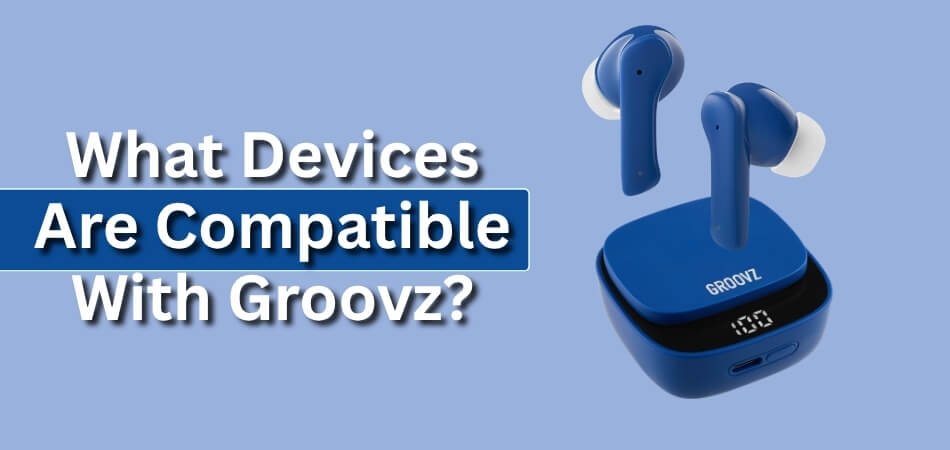
Groovz does not rely on proprietary apps or model-specific features. The only requirement is Bluetooth audio support, which is standard on nearly all smartphones, tablets, laptops, and many smart devices today.
Smartphones Compatible With Groovz
Groovz earbuds are fully compatible with both Android and iOS smartphones, offering seamless wireless audio across platforms.
Android Phones
- Compatible with all major Android brands, including Samsung, Google, OnePlus, Xiaomi, and more
- No brand or model restrictions
- Works across Android versions that support Bluetooth audio
iPhones (iOS)
- Fully compatible with iPhones running iOS
- Connects directly through iOS Bluetooth settings
- No additional apps or accessories required
If your phone supports Bluetooth headphones, Groovz will work without issues.
Tablets That Work With Groovz
Groovz also pairs effortlessly with tablets, using the same pairing process as smartphones.
Supported Tablets
- Android tablets
- iPads
Ideal for:
- Watching videos and streaming content
- Online classes and remote learning
- Voice calls and casual gaming
Once paired, Groovz delivers consistent wireless audio performance across tablet devices.
Laptops & Computers Compatible With Groovz
Groovz is compatible with computers that have built-in Bluetooth audio support.
Supported Systems
- Windows laptops and desktop PCs
- macOS devices, including MacBooks and iMacs
Typical use cases:
- Video calls and virtual meetings
- Music and video streaming
- General day-to-day computer audio
Pairing is handled through standard system Bluetooth settings, making setup quick and straightforward.
Other Bluetooth-Enabled Devices
In addition to phones and computers, Groovz can connect to several other Bluetooth-capable devices.
Common Examples
- Smart TVs with Bluetooth audio support
- Bluetooth audio adapters for TVs or older devices
- Gaming consoles that allow Bluetooth audio output (where supported)
Compatibility here depends on whether the device supports Bluetooth audio transmission, not on Groovz itself.
Where Groovz May Need Extra Setup
- Smart TVs: Some TVs support Bluetooth but may add audio delay (lip-sync lag).
- Game consoles: Many consoles don’t support standard Bluetooth audio output without an adapter.
- Older PCs/TVs: You may need a USB Bluetooth adapter or Bluetooth transmitter.
Final Compatibility Summary
Groovz earbuds are compatible with:
- Android and iOS smartphones
- Android tablets and iPads
- Windows and macOS computers
- Many other Bluetooth-enabled devices
Groovz Model Check (Read First)
Groovz sells multiple audio models with different Bluetooth features.
- Groovz True Wireless Earbuds use Bluetooth 5.3.
- Some Groovz “Plus” models use Bluetooth 5.4 and may support multipoint pairing.
To confirm your exact model, check the product box or official listing name.
As long as a device supports Bluetooth audio, Groovz will connect reliably, making it a flexible, future-proof option for users who switch between multiple devices. This includes strong Groovz support for smartphones, allowing seamless pairing with both Android and iOS systems for music streaming, calls, and app integration without hassle or lag.
Bluetooth Requirements for Groovz Compatibility
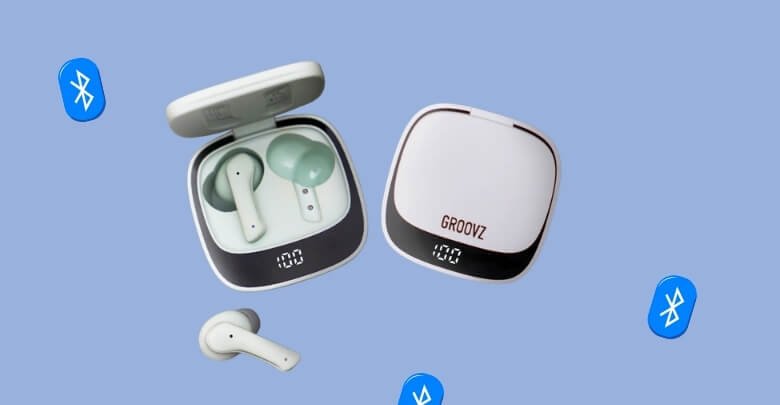
Groovz Audio earbuds work best when your device meets a few simple Bluetooth conditions. These requirements stay easy to understand and apply to most modern electronics. Below, each section explains one key area clearly, so you can check compatibility without technical confusion or extra effort.
Bluetooth Version Support
Groovz earbuds rely on modern Bluetooth technology that connects quickly across many devices without complex setup steps. Most current models use Bluetooth 5.3, while newer Plus versions upgrade to the Bluetooth 5.4 standard for efficiency today. Older phones with Bluetooth 4.2 or 5.0 still connect because Bluetooth keeps backward compatibility across many generations easily. You may miss some power savings, but sound quality and pairing stability remain strong during daily listening sessions.
Supported Devices and Platforms
Groovz works with nearly any device that supports Bluetooth audio, regardless of brand or operating system choice today. It pairs with phones, tablets, and computers, and users often ask about the Groovz earbuds country of origin. Android, iOS, Windows, macOS, and ChromeOS devices connect without special apps or extra software requirements during setup stages. Smart televisions, gaming consoles, and Bluetooth music players also work if they allow Bluetooth audio output support to be enabled.
Audio Protocols and Codecs
Groovz uses standard Bluetooth audio connectivity for music, videos, and calls. Because it follows common Bluetooth audio standards, it works across Android, iOS, Windows, and macOS devices without special apps.
Connection Range and Stability
Groovz performs best when your device stays within thirty-three feet, or ten meters, during normal indoor use. This range suits homes, offices, and travel spaces where phones usually stay nearby for stable sound playback daily. Walls may reduce signal strength, especially thick concrete, metal shelves, or large electronic equipment, which can easily block radio waves. Keeping a clear path between the device and the earbuds helps avoid drops or brief audio stutters during active movement.
How to Use the Groovz Audio Device?
Using the Groovz audio device is simple, quick, and beginner‑friendly. Whether you’re pairing it with a phone, laptop, or TV, the setup takes only a few seconds. With Bluetooth connectivity and intuitive controls, Groovz lets you enjoy clear, wireless sound without complications. Here’s how to connect, operate, and get the best performance from your device:
Smartphones
Groovz Audio earbuds connect smoothly with smartphones when you follow a simple setup order from start. This guide explains each step clearly and avoids confusion during pairing. You can begin listening quickly without special apps, technical skills, or extra tools, making daily use easy and reliable for most users.
Step 1: Charge the Earbuds Properly
Place the earbuds inside the charging case and connect the case to power using a USB-C cable until charging begins. Watch the indicator light to confirm charging status and keep it connected until full power shows. Full battery levels help pairing stay stable and support longer listening sessions during travel, study, or daily activities.
Step 2: Open the Case to Start Pairing
Open the charging case lid so the earbuds power on and enter pairing mode automatically within seconds. Flashing LED lights indicate readiness for nearby device connection and confirm pairing mode works properly. If the lights do not appear, close the lid, wait briefly, then open it again to retry pairing.
Step 3: Turn On Bluetooth on Your Phone
On iPhone, open Settings and enable Bluetooth to allow scanning for nearby audio devices immediately. Android users can swipe down for Quick Settings or open Settings and Connected devices to activate Bluetooth. Keep the Bluetooth screen open briefly so new devices appear clearly without delay.
Step 4: Select Groovz From the List
Find Groovz Audio or Groovz Earbuds listed under available Bluetooth devices and tap once to connect. Accept any pairing prompt shown on the screen and wait while the phone completes setup. When LED lights stop flashing, the phone confirms the connection, and audio routing activates automatically.
Step 5: Test Sound and Touch Controls
Play music or video content to confirm sound plays clearly through both earbuds without interruption. Use a single tap to play or pause audio and swipe controls to adjust volume smoothly. Answer calls using a double-tap and speak normally to test microphone clarity during conversations.
Tablets
Tablets make great screens for shows, school, and games, and Groovz earbuds can pair fast. Follow these five steps to connect on an iPad or Android without stress. You only need Bluetooth, a charged case, and a minute of focus, then play music, adjust volume, and enjoy steady sound anywhere today.
Step 1: Charge the Earbuds
First, place both earbuds in the case and plug in a USB-C cable to charge right away. Check the case light, and wait until it shows full power for playtime before you start streaming. Unplug, keep the lid closed, and carry the case with your tablet for pairing later today.
Step 2: Open the Case and Enter Pairing Mode
Next, open the case lid, and watch the earbuds’ lights flash to show pairing mode clearly now. Keep the earbuds near your tablet, and avoid closing the lid during setup so the scan finds them. If the lights do not flash, close, wait ten seconds, and reopen the case again to retry.
Step 3: Enable Bluetooth on Your Tablet
Then, turn on Bluetooth in your tablet settings, and stay on that screen for discovery each time. On iPad, tap Settings, then Bluetooth, and switch it on with touch before you search for earbuds. On Android, open Network options or Quick Settings, enable Bluetooth, and keep it visible until paired.
Step 4: Pair Groovz From the Bluetooth List
Afterward, look at the device list, and choose Groovz Audio or Groovz Earbuds to connect securely now. Your tablet may ask for a prompt, so tap Pair and wait until it shows connection status. When the lights stop flashing, play a short clip to confirm clear sound in both ears.
Step 5: Test Audio and Touch Controls
Finally, start a song or video and use touch controls to manage playback easily on your tablet. Tap once for play or pause, swipe for volume, and double-tap for calls during chats. If the sound cuts out, move closer, clear obstacles, and reconnect from the Bluetooth menu to get the sound again.
Laptops
Groovz earbuds work great with laptops when you follow a clear and easy pairing process. Most devices need just a few steps to connect. You can use either Windows or Mac computers without extra tools, apps, or accounts. This guide shows you how to connect and enjoy sound quickly.
Step 1: Charge the Earbuds Completely
Place the earbuds into the charging case and plug it into a power source using a USB-C cable for charging. Watch the lights on the case while charging starts, and leave the cable connected until full power shows. Strong battery levels help prevent sudden connection drops during long laptop sessions.
Step 2: Open the Case to Start Pairing
Lift the lid of the charging case so the earbuds turn on and enter pairing mode within a few seconds. Flashing LED lights on the earbuds confirm they are ready to pair and are working correctly. If nothing flashes, close the lid and reopen it again to reset pairing mode.
Step 3: Turn On Bluetooth on Your Laptop
Go into the Bluetooth settings, depending on your laptop’s system, and turn Bluetooth on before pairing. On Windows, open Settings and go to Devices or Bluetooth & Devices, then toggle Bluetooth. On Mac, go to System Settings and choose Bluetooth to enable wireless device discovery.
Step 4: Select Groovz and Confirm Pairing
Click “Add Bluetooth or other device” on Windows or refresh the device list on Mac to begin scanning. Choose Groovz Audio when it appears in the list and confirm the request to connect. Wait until pairing completes and the earbuds’ lights stop flashing to confirm the connection works.
Step 5: Test Audio and Touch Features
Play a video or open your favorite music app to make sure sound comes through both earbuds clearly. Use the built-in touch controls to adjust volume, pause playback, or skip tracks easily. Try a call or voice message to check how well the earbuds handle microphone input.
FAQs About the Device Compatibility of Groovz
Groovz Audio earbuds support many devices beyond basic phones and computers, and users often ask deeper compatibility questions before buying. The FAQs below address common concerns that were not explained earlier, helping you understand special use cases, limits, and expectations clearly without technical confusion.
Can Groovz Connect to Multiple Devices at the Same Time?
Groovz can remember previously paired devices, but simultaneous multipoint pairing depends on the model. Some “Plus” models may support multipoint, while standard models usually connect to one active device at a time. If you’re unsure, check your model name on the box or listing.
Do Groovz Work With Devices That Use Bluetooth Adapters?
Groovz works well with external Bluetooth adapters that support audio output, such as USB or AUX Bluetooth transmitters. These adapters help older televisions, desktop computers, or wired systems connect wirelessly. As long as the adapter supports standard Bluetooth audio profiles, Groovz should pair and play sound normally without issues.
Are Groovz Compatible With Very Old Devices?
If the device supports Bluetooth audio, Groovz can connect to many older devices. However, very old devices may show shorter range, slower pairing, or weaker battery efficiency. Audio still works reliably, but advanced power-saving features available on newer devices may not function fully.
Will Software Updates Affect Groovz Compatibility?
Operating system updates on phones or computers rarely break Groovz compatibility because the earbuds rely on standard Bluetooth protocols. Even after updates, Bluetooth audio settings usually remain unchanged. If a device resets Bluetooth preferences, you may need to reconnect Groovz, but long-term compatibility stays stable.
Can Groovz Be Used With Hearing Assistance or Accessibility Devices?
Groovz can work alongside accessibility features built into phones and computers, such as mono audio or volume balancing tools. However, they do not directly replace medical hearing aids or specialized assistive listening systems. Users relying on accessibility features should test settings to ensure comfort and sound clarity.
Closing Remarks
Groovz stands out because it keeps compatibility simple and stress-free for everyday users. Whether you switch between phones, tablets, laptops, or entertainment systems, the earbuds adapt without extra apps or complex steps. Many buyers worry about limits, but learning what devices are compatible with Groovz often brings quick relief.
Bluetooth support remains the only real requirement, which most modern devices already include. This flexibility makes Groovz a practical choice for people who use multiple platforms daily. With stable connections, broad support, and easy pairing, Groovz fits smoothly into different routines without forcing users into one ecosystem.


