
The thought of losing my favorite photos because of a damaged phone genuinely worries me. Those pictures hold memories I wouldn’t want to lose, from family celebrations to little moments worth keeping forever. And when phone storage starts running low, deciding which photos to delete feels like choosing favorites among memories. That’s definitely not a decision I enjoy making!
That’s why Clickfree caught my attention. I like its simple approach to protecting important photos, videos, contacts, and other personal files without relying entirely on cloud storage. Its compact design, multiple connectors, and one-click backup system make it an interesting solution for keeping digital memories organized and accessible.
In this Clickfree review, I’m sharing my personal impressions of its features, backup performance, ease of use, and overall value. I’ll explore what I find most useful, where I see room for improvement, and how Clickfree compares with other storage options. My goal is to help you decide whether it’s the right backup solution for your needs.
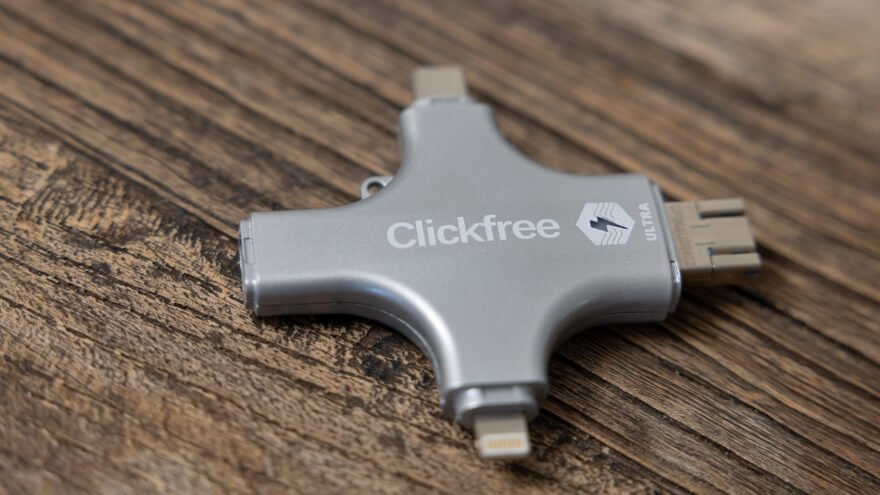
Clickfree is a portable USB backup device that helps users store copies of important digital files outside their phones and computers. It combines physical storage with companion software that makes finding and copying supported files more convenient.
- Makes backing up photos, videos, and contacts easier with its one-click backup system.
- Supports different compatible devices through multiple built-in connectors.
- Stores personal files locally without requiring a monthly cloud-storage subscription.
- Available storage space depends on the capacity purchased.
My Quick Verdict
Clickfree makes backing up photos, videos, and contacts easier with its one-click backup system and portable storage design. What I appreciate most is its multiple connectors and straightforward operation, making it a practical choice for everyday users. I recommend it for convenient personal backups, especially if you prefer physical storage over cloud subscriptions.
What Is Clickfree and How Does It Help?
Clickfree is a portable USB backup device that helps users store copies of important digital files outside their phones and computers. It combines physical storage with companion software that makes finding and copying supported files more convenient.
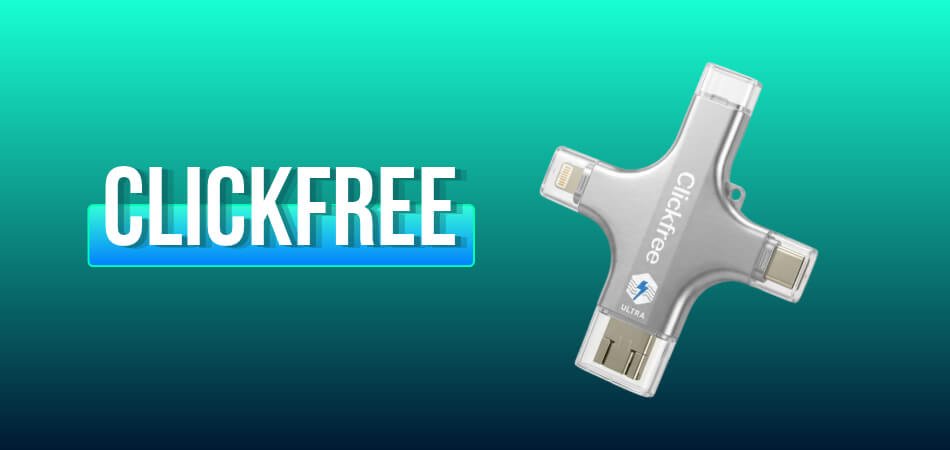
The main purpose is simple: protect personal memories and make them easier to preserve. Many people depend on their phones to store years of photographs, videos, and contacts. Clickfree provides another storage location without requiring users to manually move every individual picture.
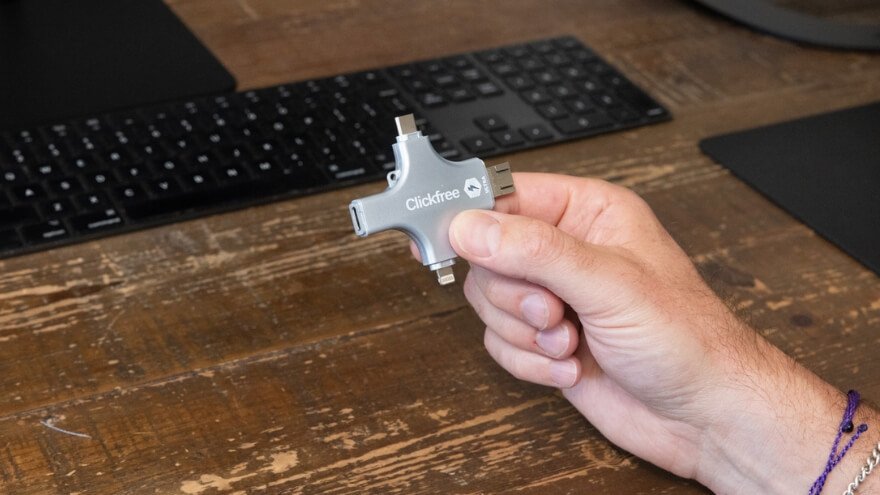
The device uses several built-in connectors, allowing it to connect to different categories of compatible phones, tablets, and computers. Its mobile backup process uses the Clickfree app, which helps find supported files and manage the transfer.
Clickfree Product Overview
| Specification | Details |
| Product Name | Clickfree |
| Product Type | Portable photo and file backup device |
| Main Functions | Photo, video, contact, and supported file backup |
| Connections | USB-A, USB-C, Lightning, and Micro-USB configurations |
| Compatible Platforms | Selected iPhone, Android, Mac, and Windows devices |
| Backup Software | Clickfree companion app |
| Storage Options | 32GB, 64GB, 128GB, and 256GB in the reviewed package range |
| Additional Functions | Photo scanning, file management, and associated AI editing tools |
| Storage Method | Local physical storage |
| Monthly Hardware Storage Fee | None |
Clickfree is primarily a personal backup accessory, not a complete replacement for every type of data storage. It is intended to simplify saving important files, but its functionality still depends on compatible devices and software.
It’s also important to distinguish between Clickfree editions. Some products in the Clickfree family have different connectors, capacities, accessories, and software packages. The storage configurations discussed later belong to the specific Clickfree package range examined for this review.
Clickfree Features and Benefits: What Does It Offer?
Clickfree combines one-click photo backup, multiple device connections, and portable storage to make protecting personal files easier. What I find most useful is how these features work together. Instead of managing everything manually, users can save important memories through a guided process and keep a physical copy outside their phones.
Key Clickfree Backup Features
These are the five features I consider most important for everyday use.
- One-Click Photo Backup: Clickfree’s companion app helps locate and copy supported photos, videos, and contacts with minimal manual file management. This makes regular backups more approachable, especially for users who aren’t comfortable organizing folders.
- Multi-Device Connectivity: Its built-in connector options support different types of compatible smartphones and computers. I particularly appreciate this flexibility because it can reduce the need to carry separate adapters when switching devices.
- Portable Offline Storage: Clickfree saves files directly onto its physical storage, providing an additional copy without requiring a monthly cloud-storage subscription. This is useful for people who prefer keeping their personal memories locally.
- Smart File Organization and Duplicate Recognition: The backup software helps organize saved content and recognize previously copied files. These functions make managing a growing photo collection easier and can reduce unnecessary duplicate copying.
- Direct-to-Drive Capture: This feature is designed to save newly captured photos and videos directly onto external storage. I find it particularly interesting for situations where phone storage is limited, although its availability depends on device compatibility.
Additional Photo Preservation Features
Beyond its main backup functions, the Clickfree ecosystem includes several tools for managing and improving personal photographs.
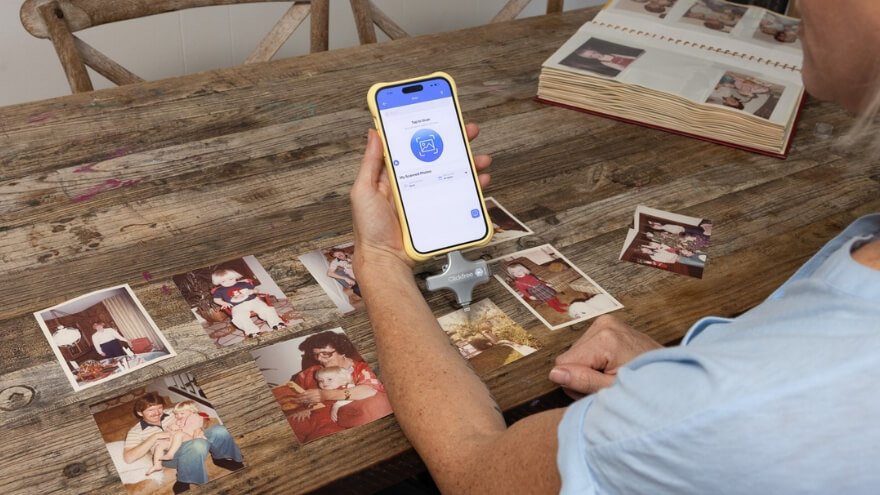
- Old Photo Scanning: Turn printed family photographs into digital images using a compatible smartphone.
- AI Photo Enhancement: Explore sharpening, colorization, and other editing tools for improving digital photographs.
- Photo Editing Tools: Associated functions include cropping and background editing to help manage images.
These additional tools expand Clickfree’s usefulness beyond basic file storage. However, access to individual AI functions and their pricing may depend on the software package or service selected.
What Makes These Features Useful?
For me, Clickfree’s biggest advantage is the combination of guided backup and accessible physical storage. The one-click process simplifies saving files, while multiple connection options make the device more practical for compatible devices.
I also appreciate the photo-preservation tools, but the backup system remains the main reason I’d consider Clickfree. After all, organizing old memories is enjoyable, but keeping them protected comes first.
Clickfree Compatibility With iPhone, Android, Mac and Windows
Clickfree is designed for use across several device families, including iPhone, Android, Mac, and Windows. Its built-in connector arrangement is one of its main advantages, particularly for households using devices from different manufacturers.
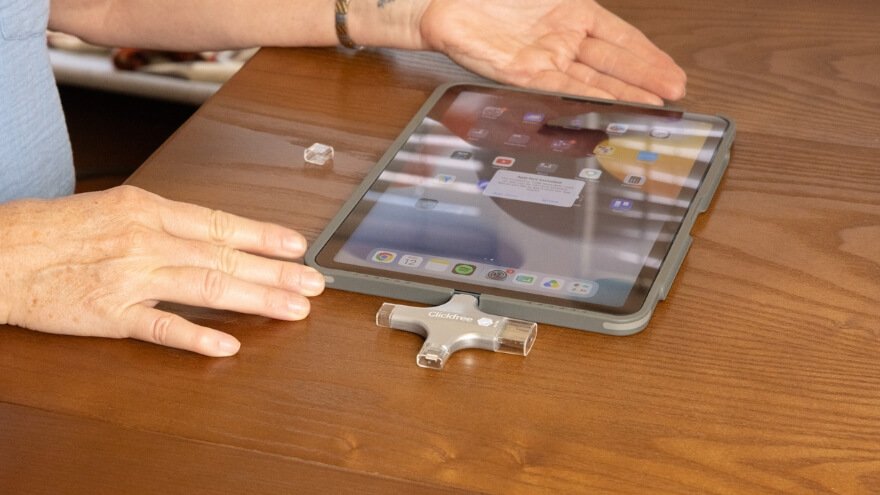
The connection types serve different purposes.
| Connection Type | Common Compatible Devices |
| Lightning | Supported iPhones and iPads |
| USB-C | Supported Android phones, newer Apple devices, tablets, and computers |
| USB-A | Computers and other devices with compatible USB ports |
| Micro-USB | Selected older phones and compatible devices |
The convenience is easy to appreciate. Instead of carrying several adapters, users can select a suitable built-in connector for the device they want to back up.
However, physical connection and software compatibility are not the same thing. A connector fitting into a phone does not automatically mean the backup application supports that phone’s operating system.
Clickfree provides mobile applications for iOS and Android, but software requirements vary across the product and support information. Some Android versions also have different app requirements.
My recommendation is to check the exact phone model, operating-system version, and Clickfree application before purchasing. This is particularly important for older smartphones and devices running recent operating-system updates.
Computer access also deserves attention. A USB drive can be physically connected to a Mac or Windows computer, but the available backup and file-management functions may differ from those on a phone.
What Initially Caught My Attention About Clickfree
What initially attracted me to Clickfree was its combination of a compact design, multiple connectors, and a simple photo backup system. I like products that solve everyday problems without adding unnecessary complications. Clickfree caught my interest because it brings several useful backup functions into one portable device.
The Convenient Multi-Connector Design
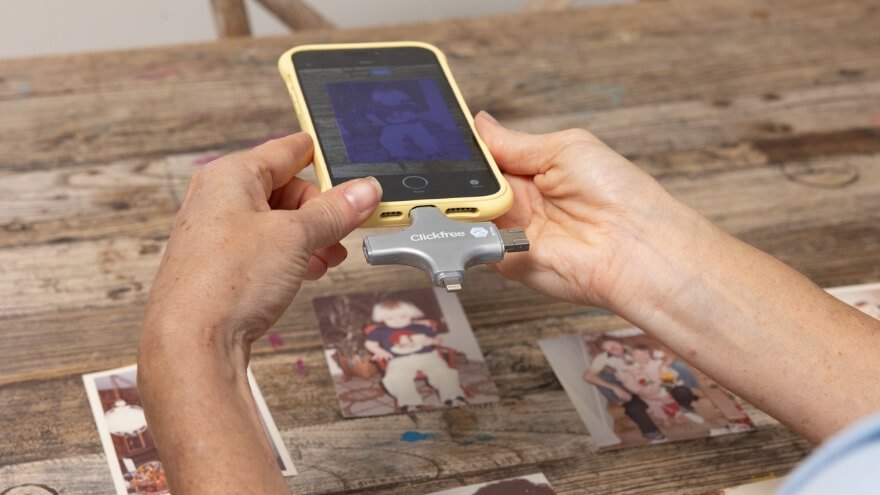
The first thing I noticed was Clickfree’s versatile connector arrangement. Its USB-A, USB-C, Lightning, and Micro-USB connection options make it practical for different types of compatible phones and computers. I particularly appreciate the idea of switching between devices without carrying several separate adapters.
For me, this is a thoughtful design choice. Finding the right cable can sometimes feel like solving a puzzle, so having multiple connection options built into one compact device makes everyday backup management more appealing.
The Simplicity of One-Click Photo Backup
Another thing that caught my attention was Clickfree’s one-click photo backup system. Instead of manually selecting and transferring individual files, the companion app helps locate and copy supported photos, videos, and contacts to physical storage.
I find this approach particularly useful for people who have thousands of photos but rarely make time to organize them. The guided process makes regular backups feel more manageable, which is an important advantage for everyday users.
The Focus on Preserving Personal Memories
What makes Clickfree more interesting to me is its focus on preserving memories rather than simply storing files. Alongside digital backups, its associated photo tools include scanning old printed pictures and exploring AI-powered image enhancements.
I appreciate this combination because personal photographs often carry more value than their file sizes suggest. Clickfree’s biggest appeal, in my view, is making important memories easier to preserve and access. That’s what makes it worth considering beyond an ordinary USB drive.
How Clickfree’s One-Click Photo Backup Technology Works
Clickfree’s one-click backup technology works by connecting physical USB storage to a compatible device and using its companion app to scan, identify, copy, and organize personal files. The system combines automated file detection, duplicate recognition, and direct data transfer to simplify the backup process. Instead of manually moving individual photos, videos, and contacts, users can rely on the software to handle much of the file management.
1. Device Connection and App Communication
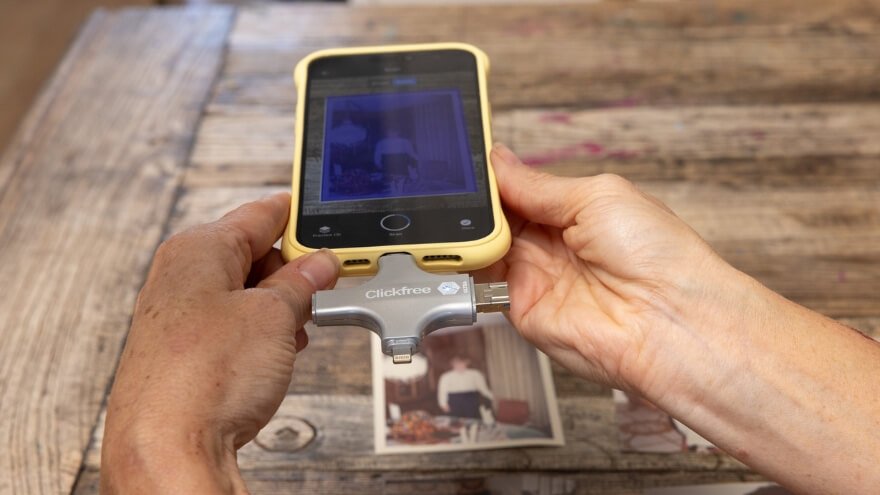
Clickfree establishes a physical data connection with a compatible phone or computer through its USB connector. On supported smartphones, the companion app communicates with the connected storage device and manages the backup process. This connection creates a direct pathway for transferring supported files from the phone’s internal storage to Clickfree.
2. Automatic File Scanning and Detection
Once the backup begins, the Clickfree app scans the photos, videos, contacts, and other supported files it has permission to access. The software identifies eligible content without requiring users to search through individual folders or select every photograph manually. This automated detection is a central part of Clickfree’s one-click backup system, making large personal file collections easier to manage.
3. Duplicate Recognition and File Selection
Clickfree uses duplicate-recognition functionality to help identify files that have already been saved during previous backups. This reduces unnecessary copying and helps manage growing photo collections more efficiently. The software may still scan previously backed-up content to identify differences, so backup duration depends on the number and size of files being processed.
4. Direct File Transfer to Physical Storage
After identifying the selected files, Clickfree transfers copies through the USB connection and saves them to its physical storage. This local transfer does not require uploading the files to a cloud-storage account, making the basic backup process independent of cloud subscriptions. Importantly, the original files remain on the source device unless they are separately deleted, so creating a backup does not automatically free up phone storage.
5. File Organization and Backup Completion
As the transfer progresses, Clickfree’s software helps organize the saved content for future access and restoration. Its supported backup workflow also includes interrupted-backup continuation, which helps manage transfers that stop before completion. What I appreciate most is how these processes work together to simplify personal backups, although checking saved files afterward remains important for protecting valuable memories.
Clickfree Backup and Restore Performance: Speed, Reliability and Limitations
Clickfree provides a convenient way to back up photos, videos, contacts, and other supported files while keeping them accessible for future recovery. Its app-assisted backup process reduces manual file management, making it suitable for everyday users with growing photo collections. I particularly appreciate this approach because reliable backups should be easy to maintain, not another complicated task on the to-do list.
Clickfree Backup Speed and Transfer Performance
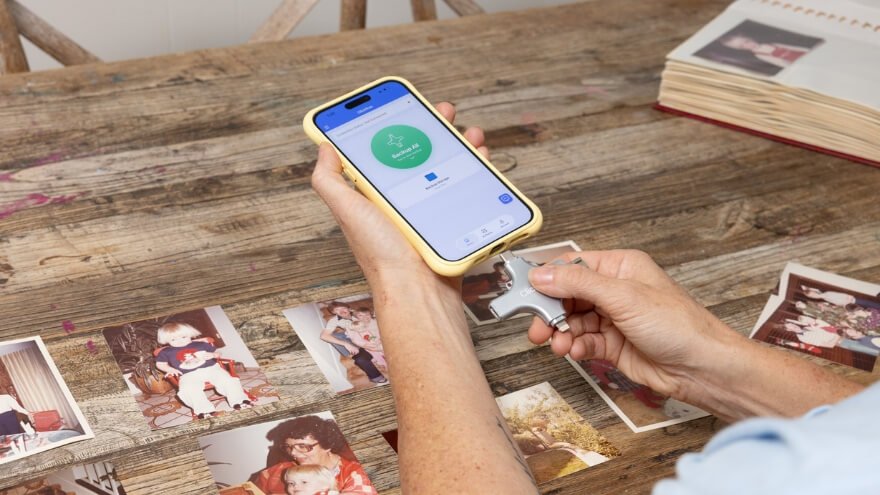
Clickfree can handle large photo collections through its guided backup system. One customer, Coleen Hildebrand, shared that approximately 1,185 photos and videos were backed up from a Samsung phone in around five minutes. While that is an encouraging example, actual transfer speed depends on file sizes, device compatibility, and the amount of data being copied.
For example, transferring hundreds of small photographs can be faster than saving several large videos. The first backup may also take longer than later sessions because more files need to be processed. What matters most to me is having a manageable backup process that makes regular file protection easier.
Clickfree Backup Reliability and File Restoration
Clickfree saves copies of supported files onto its physical storage, allowing users to access and restore saved content through compatible devices and software. Its duplicate-recognition and interrupted-backup continuation functions help manage repeated backups and transfers that stop before completion. These capabilities make the system more practical for maintaining a growing collection of personal memories.
However, restoring saved photographs or contacts is different from recovering an entire phone’s operating system and applications. I recommend checking important files after a backup to ensure they open correctly. Like any portable USB storage device, Clickfree can also be lost or damaged, so keeping another independent backup remains a sensible precaution.
Clickfree Backup Performance at a Glance
| Performance Factor | Clickfree Capability | Practical Consideration |
| Backup Speed | Customer example of 1,185 files in around 5 minutes | Actual speed varies with file sizes and devices |
| Backup Content | Photos, videos, contacts, and supported files | File compatibility depends on the backup workflow |
| Repeated Backups | Duplicate recognition helps manage previously saved files | Scanning may still take time |
| Interrupted Transfers | Supports backup continuation | Important files should be checked after completion |
| File Restoration | Access and recovery of supported saved files | Not equivalent to a full phone-system restore |
| Long-Term Reliability | Physical storage keeps an additional local copy | Drive damage or loss can affect saved files |
My Assessment of Clickfree’s Backup Performance
What I like most about Clickfree’s backup performance is the balance between convenience and practical file management. The guided system, duplicate recognition, and physical storage make it appealing for people who want to preserve memories without managing every file individually.
I consider Clickfree a useful additional backup solution, especially when combined with regular file checks and another independent copy of important data.
What I Found Interesting About Clickfree’s Direct-to-Drive Capture
What interests me most about Clickfree’s Direct-to-Drive Capture is its ability to save new photos and videos directly to external storage instead of filling up a phone’s internal memory. Unlike traditional backups, which copy files already stored on a device, this feature focuses on saving new content as it is captured. I find this particularly useful for people who take lots of pictures and regularly struggle with limited phone storage.
How Clickfree’s Direct-to-Drive Capture Works
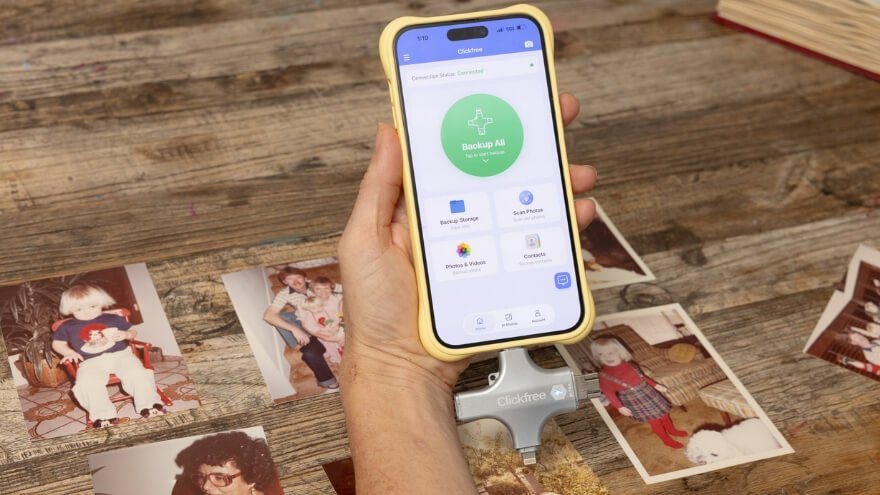
Clickfree’s Direct-to-Drive Capture works through a compatible smartphone and its connected physical storage. Rather than saving a new photograph or video to the phone first and transferring it later, the supported capture function saves the content directly onto Clickfree. This creates a different storage workflow from ordinary photo backup and can reduce the internal space needed for new recordings.
The feature depends on the phone, companion software, and supported capture formats. It is not the same as changing the storage location inside every built-in camera application. I appreciate this distinction because direct capture is useful only when the recording function and connected hardware work together properly.
Why I Find This Feature Useful
The biggest advantage for me is the flexibility it brings to situations where phone storage is already running low. Whether someone is recording travel videos, taking family photographs, or capturing a special event, saving new content directly to external storage can help avoid filling the phone with additional files. It also makes Clickfree more versatile than a device used only for transferring existing photographs.
I especially like the convenience of having another storage destination available when taking new photos. Nobody wants to interrupt an important moment just to decide which old screenshots deserve deletion. Direct-to-Drive Capture addresses that frustration by changing where supported new content is saved.
Direct-to-Drive Capture vs Regular Photo Backup
| Feature | Direct-to-Drive Capture | Regular Clickfree Backup |
| Main Purpose | Save newly captured content | Copy existing personal files |
| When It Works | During supported photo or video capture | After files already exist |
| Storage Destination | Connected Clickfree storage | Connected Clickfree storage |
| Phone Storage Benefit | Can reduce internal space used by new recordings | Does not automatically remove originals |
| Best For | Recording new memories with limited phone space | Preserving existing photos and videos |
My favorite aspect of Direct-to-Drive Capture is how it complements Clickfree’s regular backup system. One function helps preserve existing memories, while the other provides an additional storage option for new ones. I see this as a practical combination for photography enthusiasts and everyday smartphone users, particularly when device compatibility and available storage capacity match their needs.
How to Use Clickfree for Photo, Video and File Backup
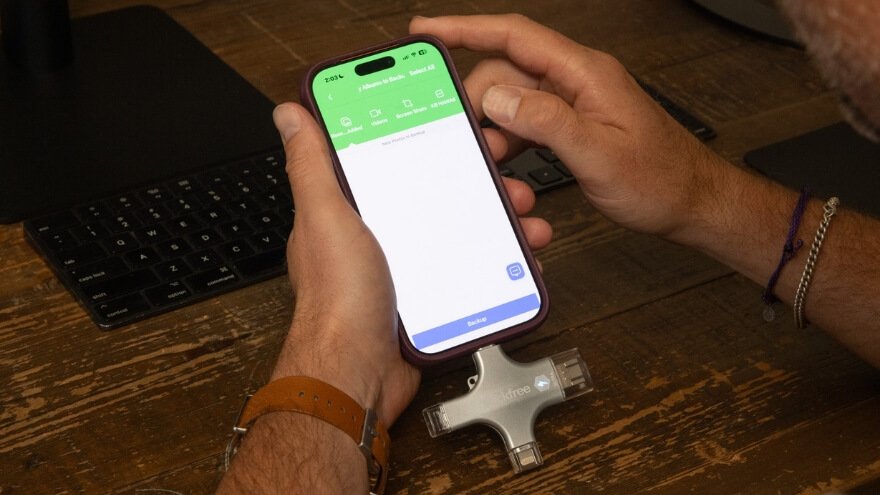
Using Clickfree is straightforward: install the companion app, connect the backup device, grant file access, and start the backup to save photos, videos, contacts, and other supported files. The application handles file scanning and copying, reducing the need for manual transfers. I appreciate this beginner-friendly approach because protecting personal memories shouldn’t require advanced technical knowledge.
Step-by-Step Guide to Using Clickfree
Getting started with Clickfree involves a few simple steps, from checking device compatibility to saving your first backup. I’ve organized the process below to make it easy for beginners to follow. Each step explains what to do and why it matters for successfully backing up personal files.
Step 1: Check Device Compatibility and Storage Capacity
Before starting, confirm that your smartphone or computer supports the Clickfree version you have. Check whether your device uses USB-C, Lightning, USB-A, or another compatible connection. Also, make sure your Clickfree drive has enough available storage for the files you want to back up, especially if your collection includes large videos.
Step 2: Download and Install the Clickfree App
For a supported smartphone, download the appropriate Clickfree companion app from the Apple App Store or Google Play Store. Install the application and open it to get familiar with the backup interface. The app manages supported file detection, transfers, and access to saved content, so having the correct version is important.
Step 3: Connect Clickfree to Your Device
Insert the appropriate Clickfree connector into your phone’s charging or data port. Make sure the connection is secure so the device can communicate properly during file transfers. If your phone displays a prompt requesting permission to access the connected accessory, follow the instructions on the screen.
Step 4: Open the App and Allow File Access
Launch the Clickfree app with the backup device connected. The application may request access to your photos, videos, contacts, or other supported content, depending on your device and selected backup functions. Grant permission for the files you want to preserve so the software can identify and include them in the backup.
Step 5: Select the Backup Function
Find the backup option inside the Clickfree application and start the process. The software scans accessible files and prepares supported content for transfer to the connected storage. This is where the one-click backup system becomes useful, as it reduces the need to select and copy hundreds of photographs individually.
Step 6: Allow the Backup to Finish
Keep Clickfree connected while the application copies your files to its physical storage. The time required depends on the number of files, their sizes, and your device’s performance. Avoid disconnecting the drive or interrupting the process until the app indicates that the backup has finished.
Step 7: Check Your Files and Disconnect Clickfree
After the backup finishes, use the available file-management or restore functions to check the saved content. I recommend opening a few important photos and videos to confirm they are accessible before deleting anything from the original device. Once you’ve finished checking, follow any safe-disconnection instructions for your device, then remove Clickfree and store it somewhere protected.
Practical Clickfree Backup Habits
Regular backups are essential for keeping your Clickfree storage up to date as new photos, videos, and files accumulate. I recommend developing a few simple habits to reduce the risk of incomplete backups or lost memories. These practical tips can help maintain reliable access to important personal files.
- Back Up Regularly: Run another backup after important events, vacations, or whenever you’ve added a significant number of new photos and videos.
- Check Available Storage: Monitor remaining capacity before transferring large files so the drive doesn’t run out of space during a backup.
- Keep Your Device Charged: Make sure your phone has sufficient battery power before starting a large transfer to reduce the risk of interruptions.
- Verify Important Files: Open a few saved photographs, videos, and documents after each major backup to confirm they can be accessed.
- Avoid Disconnecting During Transfers: Keep the physical connection secure until the backup finishes to reduce the chance of incomplete copies.
- Store Clickfree Safely: Keep the device away from moisture, excessive heat, and places where it could easily be lost or damaged.
- Maintain Another Backup Copy: Preserve especially valuable memories in another independent storage location rather than relying on a single USB drive.
What I like most about using Clickfree is that the process focuses on simplicity without requiring users to organize every file manually. Once the initial setup is complete, regular backups can become a manageable part of protecting personal memories. My recommendation is to make backup verification a habit, because saving files is useful, but knowing you can retrieve them is what really matters.
Clickfree Data Security, Privacy and Offline Storage Explained
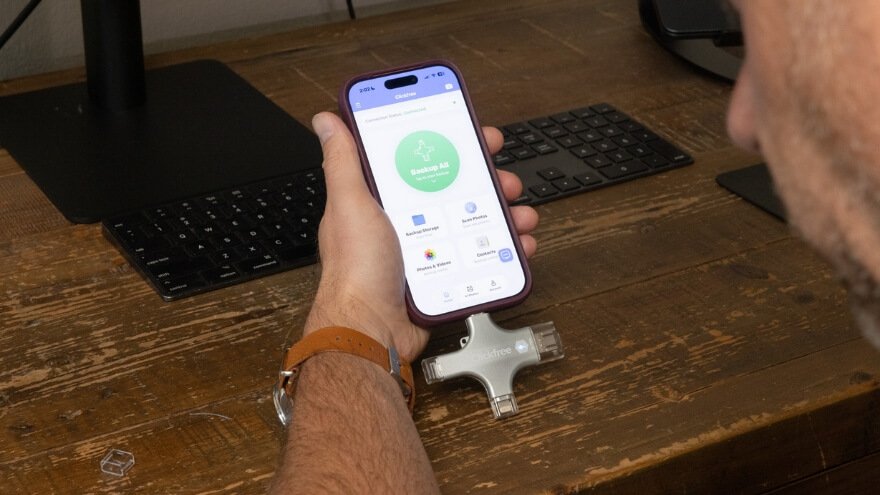
Clickfree stores photos, videos, contacts, and other supported files directly on a physical USB drive. This allows users to keep personal backups without depending on cloud storage. I appreciate this approach because it provides more control over where important files are stored.
How Clickfree’s Offline Storage Works
Clickfree transfers supported files to its physical storage through a USB connection. Once the backup finishes, users can disconnect the drive and store it safely. The basic backup process does not require uploading files to a cloud account.
This is useful when internet access is limited. It also removes the need for a monthly cloud-storage subscription for basic file storage. However, app installation and certain AI tools may still require internet access.
Clickfree Privacy and Data Security
Clickfree gives users physical control over their backups, but local storage alone does not guarantee complete security. A portable USB drive can still be lost, stolen, or damaged. Sensitive files may also require encryption or password protection, depending on the user’s security needs.
What I like most is the ability to keep personal photographs outside an online account. However, I would check the device’s security features before storing confidential information. Keeping another independent backup is also important.
Clickfree Offline Storage and Security Overview
| Security Feature | Clickfree Capability | Practical Benefit |
| Local Storage | Saves files on a physical drive | Direct control over backups |
| Internet Access | Not needed for basic local backup | Useful without Wi-Fi |
| Cloud Subscription | No monthly hardware-storage fee | Avoids recurring storage costs |
| File Privacy | Files can remain offline | Less reliance on online accounts |
| Physical Security | Portable USB storage | Easy to store separately |
| File Recovery | Supports access to saved files | Helps retrieve backed-up content |
My Tips for Keeping Clickfree Backups Safe
I recommend following a few simple habits to protect important files. These precautions help reduce the risks of physical storage. They also make regular backups more dependable.
- Store It Safely: Keep Clickfree away from moisture, heat, and physical damage.
- Keep Another Copy: Save important files in a second independent location.
- Check Your Files: Open saved photos and videos regularly to confirm they work.
- Protect Sensitive Data: Check available security features before storing confidential documents.
- Disconnect Properly: Remove the drive safely after completing each backup.
What I appreciate most about Clickfree is its simple approach to offline storage. It gives users a practical way to keep personal memories outside their phones and cloud accounts. I recommend using it as an additional backup rather than the only place for important files.
Clickfree vs Cloud Storage and Regular USB Drives: Key Differences
Clickfree’s main difference from a regular USB drive is its combination of physical storage, integrated connectors, and a guided backup application. Compared with cloud storage, its main appeal is keeping copies locally without a recurring cloud-storage requirement for the basic backup function.
Each approach has different strengths.
| Feature | Clickfree | Regular USB Drive | Cloud Storage |
| Storage Location | Physical device | Physical device | Remote servers |
| Main Backup Method | App-assisted file copying | Depends on device and software | Service-based uploading or synchronization |
| Internet for Local Storage | Not required for basic physical storage | Generally not required | Generally required for uploading |
| Multiple Built-In Connectors | Available in Clickfree configurations | Depends on product | Not applicable |
| Storage Capacity | Fixed by purchased version | Depends on drive | Depends on plan |
| Monthly Storage Fee | None for basic hardware storage | Usually none for the drive itself | Depends on service and plan |
| Automatic Remote Access | No inherent cloud access | No inherent cloud access | Depends on service |
| Physical Loss Risk | Yes | Yes | Different account and service risks |
Clickfree Versus a Regular USB Drive
A conventional USB drive may be enough for someone who is comfortable copying files manually and organizing folders.
Clickfree becomes more interesting when users value a guided phone-backup process and convenient connector options.
The practical difference is software assistance, not simply the ability to store photographs.
Clickfree Versus Cloud Storage
Cloud storage can provide convenient access across devices and may support background synchronization. Clickfree takes a different approach by allowing users to maintain physical copies.
I would not automatically replace cloud storage with a single USB backup device. A combination of local and separate backup locations may provide broader protection, depending on the user’s needs.
For me, the most sensible choice depends on whether convenience, remote access, physical control, or storage capacity matters most.
Who Should Buy Clickfree and Who Should Avoid It?
Clickfree is best for people who want a simple way to back up photos, videos, contacts, and other supported files without relying entirely on cloud storage. Its portable design and guided backup system make it useful for everyday file protection. I recommend it most to users who value convenience and physical storage.
Who Should Buy Clickfree?
Clickfree can be a practical choice for different types of users. Its main strengths are easy file backups, multiple connection options, and local storage. Here are the people I believe would benefit most.
1. Smartphone Users With Growing Photo Collections
Clickfree is useful for people who regularly take photos and videos on their smartphones. Its backup system helps save important files to physical storage without manually transferring each one. I particularly recommend it for users who want to preserve their memories and manage growing photo collections.
2. Families Who Want to Preserve Important Memories
Families often collect years of birthday photos, vacation videos, and special moments. Clickfree provides an additional place to store these personal memories outside their phones. I appreciate this benefit because losing family photographs can mean losing memories that cannot be recreated.
3. Beginners and Older Adults Who Prefer Simple Backups
Clickfree is worth considering for people who find manual file transfers complicated. Its companion app helps locate and copy supported files through a guided process. I like this approach because it makes regular backups more approachable without requiring advanced technical knowledge.
4. People Using Multiple Compatible Devices
Clickfree can be convenient for households with different smartphones and computers. Its multiple connector options reduce the need for separate adapters when switching between compatible devices. I find this particularly practical for families managing photos and files across several devices.
5. Users Who Prefer Physical Storage Over Cloud Subscriptions
Clickfree is suitable for people who want local copies of their files without paying monthly cloud-storage fees. Once files are backed up, the physical drive can be disconnected and stored safely. I appreciate having this additional storage option, especially for personal photographs and videos.
Who Might Not Need Clickfree?
Clickfree may be less essential for people who already have a reliable backup routine or rarely store personal photos and videos. This doesn’t make it a poor choice. It simply means some users may not need an additional backup device right now.
- People With Very Few Photos or Videos: Someone who rarely takes pictures or records videos may not need dedicated photo backup storage yet.
- Users Already Happy With Their Backup Routine: People who regularly maintain several independent backup copies may see Clickfree as an optional convenience.
- People Who Rarely Use Digital Storage: Someone who stores very little personal content may not benefit as much from a dedicated backup device.
- Users Comfortable With Manual File Transfers: People who already enjoy organizing and copying files manually may not need Clickfree’s guided backup process.
- People Who Only Transfer Occasional Files: Someone who moves a document or two between computers may find their existing USB drive sufficient.
My recommendation is to consider Clickfree if you regularly save photos, videos, or other important personal files. Its guided backup system can make protecting those memories easier, even for users who already have another storage method. I see it as a practical addition to a regular backup routine, especially when convenience matters.
Clickfree Pros and Cons: Advantages and Limitations
Clickfree offers several practical advantages, including one-click photo backup, multiple connectors, and convenient offline storage. I particularly appreciate its focus on simplicity and everyday file protection. Like any backup device, it also has a few limitations worth considering before buying.
What I like most about Clickfree is that its advantages focus on convenience, flexibility, and preserving personal memories. The limitations are manageable for many everyday users, although maintaining another independent backup remains important. For me, Clickfree’s guided backup system and portable design make it a useful addition to a regular file-protection routine.
What I Like Most About Clickfree
What I like most about Clickfree is how it makes photo backup simple, convenient, and accessible for everyday users. Its one-click backup system, multiple connectors, and physical storage are the features I appreciate most. These practical benefits make protecting personal memories easier without complicated file management.

1. Simple One-Click Photo Backup
My favorite Clickfree feature is its one-click photo backup system. The companion app helps find and save supported photos, videos, and contacts without manually transferring each file. I appreciate this simplicity because backing up thousands of memories should not feel like another difficult task.
2. Convenient Multi-Device Connectivity
I particularly like Clickfree’s built-in connector options for different compatible phones and computers. This design reduces the need to carry several adapters or separate backup devices. For me, having flexible connections in one compact device makes regular photo backups much more convenient.
3. Physical Storage and Photo Preservation
Another thing I appreciate is Clickfree’s ability to keep personal memories on physical storage without requiring a monthly cloud-storage subscription. Its associated photo scanning and AI enhancement tools also add value for preserving older photographs. I find this combination appealing because it focuses on protecting both new digital memories and treasured family pictures.
For me, Clickfree’s greatest strength is making personal file protection feel manageable. I like how its features support everyday backup needs without unnecessary complexity. The combination of simplicity, portability, and photo preservation makes it a practical choice for keeping important memories safe.
Clickfree Pricing, Storage Capacities and Value for Money
Clickfree starts at $34.99 and comes in four storage options: 32GB, 64GB, 128GB, and 256GB. Each version is available at a discounted preorder price, with savings of around 50% compared with the listed retail price. I appreciate having different capacities because buyers can choose based on their photo collections and budgets.
Clickfree Storage Options, Prices and Discounts
Clickfree offers four storage packages, each with a different capacity and price. All four options are marked for preorder. The 128GB version is labeled Most Popular, while the 256GB version carries the Best Deal label.
| Storage Capacity | Estimated Photos & Videos | Sale Price (USD) |
| 32GB | 8,000 | $34.99 |
| 64GB | 16,000 | $69.99 |
| 128GB (Most Popular) | 32,000 | $109.99 |
| 256GB (Best Deal) | 64,000 | $174.99 |
All prices are in USD. The estimated file counts include photos and videos, but actual storage depends on their sizes. Large videos can use much more space than ordinary photographs.
Choosing the Best Clickfree Storage Capacity
Each Clickfree storage option serves different needs. I recommend checking the size of your existing photo collection before choosing a package. It’s also helpful to leave room for new memories rather than filling the drive immediately.
- 32GB ($34.99): The most affordable option, suitable for smaller collections and basic personal backups.
- 64GB ($69.99): A practical choice for people with growing photo libraries who want additional storage space.
- 128GB ($109.99): The Most Popular package, offering a balance between capacity and price for larger personal collections.
- 256GB ($174.99): The Best Deal package, providing the largest capacity and the lowest cost per gigabyte among these four options.
Personally, I find the 128GB Clickfree appealing for everyday photo storage because it provides room for a substantial collection. For people who save many videos or want more space for future backups, the 256GB option offers better value per gigabyte.
Clickfree Special Discounts and Multi-Unit Deals
Clickfree features discounted prices across all four storage options. The listed savings are approximately 50% compared with their regular retail prices. The checkout also promotes an additional buying incentive for customers ordering more than one device.
The page highlights these deals:
- Around 50% off the listed retail prices.
- A promotional 55% discount when buying more than one Clickfree.
- Discounted pricing across all four storage capacities.
- A price-lock promise when placing a preorder.
The 55% multi-unit promotion should not be assumed to stack on top of the displayed sale prices. Its exact effect on the order total needs to be checked at checkout. I particularly like the multi-device buying option for families who prefer having separate backup drives.
Clickfree Payment Methods and Installment Options
Clickfree provides several payment options to make purchasing more flexible. Buyers can pay using major card networks and supported digital payment services. Installment providers are also displayed beneath the product packages.
Available payment options shown include:
- Visa, Mastercard, American Express, and Discover.
- PayPal and Google Pay.
- Card payment processing through Stripe.
- Installment payment options through Klarna, Affirm, and Afterpay.
For example, the 32GB package displays four interest-free payments of approximately $8.75 through Afterpay. Other packages also show installment options, with some plans displaying lower monthly payments.
Payment schedules and eligibility depend on the selected provider. I recommend comparing the full payment amount and repayment terms before choosing an installment plan.
Clickfree Money-Back Guarantee, Warranty and Customer Support
Clickfree includes purchase protections alongside its discounted preorder packages. These are useful because buyers can consider both the product price and the support available after ordering. The page highlights a money-back guarantee, product warranty, and customer assistance.
- 30-Day Money-Back Guarantee: Clickfree promotes returns for customers who are not satisfied with their purchase.
- 1-Year Warranty: Every Clickfree device is presented as covered by a one-year warranty.
- Quality Promise: The company emphasizes maintaining product quality throughout its process.
- Customer Support: Clickfree promotes access to a customer support team for assistance.
- US-Based Company: Clickfree identifies its operations as being based in Lancaster, Pennsylvania, USA.
My Assessment of Clickfree’s Pricing and Overall Value
Clickfree offers competitive promotional pricing for buyers who value guided photo backups, multiple connectors, and portable storage. The four capacity options provide useful flexibility, while the multi-unit promotion may appeal to families buying more than one device. I also appreciate the installment choices and stated purchase protections.
For me, the 128GB version offers a good balance, while the 256GB package is more attractive for larger photo and video collections. The final decision should depend on storage needs, total checkout cost, and the applicable purchase terms. With the right capacity, Clickfree can be a practical investment in preserving important digital memories.
How to Buy Clickfree and Choose the Right Storage Option
Buying Clickfree is simple: visit the product ordering page, choose your preferred storage capacity, select the quantity, and complete checkout. Clickfree comes in four storage options, starting at $34.99. I recommend checking your storage needs and the available discounts before placing an order.
Step-by-Step Guide to Buying Clickfree
The ordering process is straightforward, even for first-time buyers. I’ve broken it into seven simple steps to help you choose the right package. Following these steps will also help you review the final price, shipping details, and payment options.
Step 1: Visit the Clickfree Ordering Website
Start by visiting the authorized Clickfree ordering website to explore the available packages and current deals. You’ll find the different storage capacities, prices, and purchasing options. Review the product details before choosing the package that best suits your needs.
Step 2: Check Your Device Compatibility
Before selecting a package, make sure Clickfree supports your smartphone or computer. Check your device’s connector type and operating-system compatibility. This is especially important if you use an older phone or plan to back up files from multiple devices.
Step 3: Choose Your Preferred Storage Capacity
Clickfree comes in four storage options: 32GB (34.99),64GB(69.99), 128GB (109.99),and256GB(174.99). The 128GB package is labeled Most Popular, while the 256GB version is marked Best Deal. I recommend choosing enough space for your current files and future backups.
Step 4: Select Quantity and Check Available Discounts
After choosing your storage capacity, select how many Clickfree devices you want to purchase. The ordering page promotes an additional 55% discount when buying more than one device. Check the updated order total to see how the promotion applies before continuing.
Step 5: Review Shipping and Purchase Protection
Check the available preorder shipment and expected shipping date before placing your order. Clickfree uses scheduled shipping batches, so dispatch timing depends on the shipment assigned to your purchase. You can also review its 30-day money-back guarantee and one-year warranty before proceeding.
Step 6: Enter Your Details and Select Payment
Continue to checkout and enter your shipping and contact information. Clickfree displays payment options including major credit cards, PayPal, Google Pay, Klarna, Affirm, and Afterpay. Choose an available payment method and check the total cost, including any applicable shipping charges.
Step 7: Review and Confirm Your Order
Before completing your purchase, check the selected storage capacity, quantity, delivery details, and final price. Confirm that all information is correct, then submit your order. Keep your confirmation email and payment receipt for future reference.
Choose Clickfree based on your actual storage needs rather than the largest discount alone. I find the 128GB version appealing for everyday photo backups, while the 256GB option provides more room for larger collections. Checking compatibility, shipping details, and the final checkout price will help you make a more confident purchase.
Clickfree Frequently Asked Questions (FAQs)
Here are answers to common Clickfree questions about troubleshooting, managing saved photos, transferring files, and using the companion app. These tips address practical situations that may arise after setting up the device. They can help you make better use of Clickfree and manage your backups with confidence.
Why Is My Clickfree Device Not Connecting to My Phone?
Clickfree may not connect properly if the USB connector isn’t fully inserted or the phone hasn’t allowed access to the device. Check the connection and reopen the Clickfree app. A thick phone case can also prevent the connector from fitting correctly. If the issue continues, check your phone’s USB permissions and software compatibility.
Why Are Some of My Photos Missing From My Clickfree Backup?
Missing photos can result from limited app permissions or files that aren’t stored locally on the phone. For example, some photographs may exist only in iCloud or another online photo library. Check whether the originals are available on your device and whether Clickfree has permission to access them. Then review the backup again.
Can I Choose Specific Photos to Back Up With Clickfree?
Yes, Clickfree supports selecting individual photos and videos instead of backing up an entire collection. This can be helpful when you only want to save important pictures from a recent event. The available selection controls depend on the compatible Clickfree app. I find this useful for keeping smaller backups organized.
How Do I Transfer Clickfree Photos to a New Phone?
Clickfree supports transferring saved photos and videos back to compatible devices. Connect the backup drive to your new phone, open the appropriate Clickfree app, and use the available file-access or restore function. Check that your new phone supports the drive and software before transferring files. Your original backup should remain available unless you separately remove it.
Does Clearing the Clickfree App Cache Delete My Photos?
No, clearing the Clickfree app’s cache does not delete your original photographs, videos, or contacts. The cache contains temporary app data rather than the personal files themselves. However, clearing a cache is different from deleting stored backups or resetting a device. Always check which option you are selecting before confirming any deletion.
Can I Delete Photos From Clickfree Without Deleting Them From My Phone?
Files saved on Clickfree are separate copies of the originals stored on your phone. Removing an unwanted backup file from the drive does not normally remove the original photograph from your phone. Make sure you are deleting the correct copy before proceeding. I recommend keeping at least one other copy of any irreplaceable picture.
Why Does My Clickfree Backup Take So Long to Scan Photos?
The scanning process can take longer when your phone contains a large photo library or many video files. Clickfree must identify accessible content and compare it with previous backups before transferring files. Keep the device connected and allow the app to finish processing. If progress stops for an unusually long time, check the connection and application status.
Can I Use Clickfree’s Backup Features Without Paying for AI Photo Editing?
Yes, Clickfree’s basic photo, video, and contact backup functions are separate from its optional AI editing tools. You do not need to purchase AI credits simply to use the core backup function. Some advanced photo enhancements may involve additional charges or credits. Check the features included with your particular Clickfree package before purchasing extra services.
Can I Make Another Copy of the Files Stored on Clickfree?
Yes, backed-up files that are accessible through a compatible computer can be copied to another storage location. This might be a second external drive or a folder on your computer. Creating another independent copy is a sensible way to protect important memories. I recommend checking that the copied photographs and videos open correctly before storing the drives separately.
Can I Back Up My Contacts Without Saving Every Photo?
Clickfree includes contact backup as a separate file-protection function in its supported app workflows. This allows users to focus on preserving their contact list rather than always copying an entire photo library. It’s particularly useful when preparing to change phones. Make sure the app has permission to access your contacts before starting the backup.
My Final Verdict: Is Clickfree Worth Buying?
Clickfree is worth buying for anyone who wants an easier way to back up photos, videos, and important personal files. I particularly appreciate its one-click backup system, multiple connectors, and portable storage. These features make it a practical choice for protecting memories without depending entirely on cloud storage.
What matters most to me in this Clickfree review is the balance between simplicity, convenience, and value. I like how the device makes regular backups more manageable, especially for people with growing photo collections. Its flexible storage options also make it easier to find a suitable choice without overspending.
I recommend Clickfree for families, smartphone users, and anyone who values keeping personal memories safe. It’s a convenient addition to a regular backup routine, although I would still keep another copy of irreplaceable files. For me, its straightforward approach to photo backup makes it a worthwhile investment.
Clickfree is a portable USB backup device that helps users store copies of important digital files outside their phones and computers. It combines physical storage with companion software that makes finding and copying supported files more convenient.
- Makes backing up photos, videos, and contacts easier with its one-click backup system.
- Supports different compatible devices through multiple built-in connectors.
- Stores personal files locally without requiring a monthly cloud-storage subscription.
- Available storage space depends on the capacity purchased.


